
A simple way to get even more leads from ads for the same ad budget. It let us cut the cost per acquired lead by 30% on the same settings and creatives.
Set aside 5 minutes, read the article, implement it and increase the number of qualified leads for your project or your clients’ projects.
The essence of the method
Every business needs qualified leads — people who are not just interested in a product or service, but meet certain criteria.
An example. For our client — an online school on building HR departments — only requests from business owners with 10+ employees on staff count as qualified leads.
So the first step is to digitize the criteria that matter to us in the request form. That is, ask about these criteria directly in the form.
Of course the question arises that the more fields, the lower the conversion — but this can be solved by splitting the form into 2 parts:
On the landing page collect only the contacts the combo needs
On the next page ask the qualifying questions.
By our statistics the completion rate of the second form is 90%+, so we do not hurt conversion and get all the data.

Now we can see not only how many requests we get in total, but also how many of them are qualified.
The next step is to give the ad platform’s algorithms an understanding of which leads were qualified.
For that we need to send an event to Facebook Ads only when the user selected the right data.
If a person left a request and stated that they are an owner with fewer than 10 employees — they are not qualified for us. If they selected more than 10 employees — qualified.
Implementation
I will show the implementation on GetCourse, but the method works on any platform.
Step 1. Split your request form into two separate forms. Filling in the first form should fire the standard event you use — for example Lead or Complete Registration. If you do not know how to do that yet — the instructions are here.
Step 2. On the form with the qualifying questions you need to find the IDs of the fields you will need. Right-click the field you need and choose “Inspect”: DevTools will open, showing your site’s code, and since you clicked the form it will immediately highlight the form’s code. In the line of code find how the field we will analyze is named on the site — its name parameter:
![In this case the field name is formParams[userCustomFields][1553263]](/blog/celevye-lidy-facebook-1-shag/373cd724-193c-5871-ba8f-7cbe712a333b.jpg)
Step 3. Now you need to insert your firing conditions into the ready-made script.
The idea:
The code will first determine which fields we need to read, then check the values in those fields, and if they match what we need — send the event; if the values do not fit — nothing happens.
Code template:
var Form1 = document.getElementsByName('XXXXXXXXXXXX1')[0].value;
var Form2 = document.getElementsByName('XXXXXXXXXXXX2]')[0].value;

if ((Form1 === 'YYYYYY1' || Form1 === 'YYYYYY2') && (Form2 === 'ZZZZZ1' || Form2 === 'ZZZZZ2' || Form2 === 'ZZZZZ3'))
{
                  fbq('track', 'Schedule');
                  console.log('Event sent');
                } else {
                  console.log('Event NOT sent');
        }
Legend:
XXXXXXXXXXXX1 — the field name of form #1 XXXXXXXXXXXX2 — the field name of form #2 YYYYYY1 — condition parameter for form #1 YYYYYY2 — condition parameter for form #2 YYYYYY3 — condition parameter for form #3 ZZZZZ1 — condition parameter for form #1 ZZZZZ2 — condition parameter for form #2 ZZZZZ3 — condition parameter for form #3
A real example:
// Define the fields we need — role in the company and headcount
var role = document.getElementsByName('formParams[userCustomFields][1553263]')[0].value;
var shtat = document.getElementsByName('formParams[userCustomFields][1553268]')[0].value;
// Condition: IF role equals Owner or Co-owner AND headcount equals 11-50, 51-100 or over 100, the Facebook Schedule event fires, otherwise nothing fires

if ((role === 'Owner' || role === 'Co-owner') &&
                    (shtat === '11-50' || shtat === '51-100' || shtat === 'over 100')) {
                    fbq('track', 'Schedule');
                    console.log('Event sent');
                } else {
                    console.log('Wrong data');
        }
If you have trouble writing the condition for the event, you can ask ChatGPT — it will write the correct script; just describe the conditions you need in plain language.
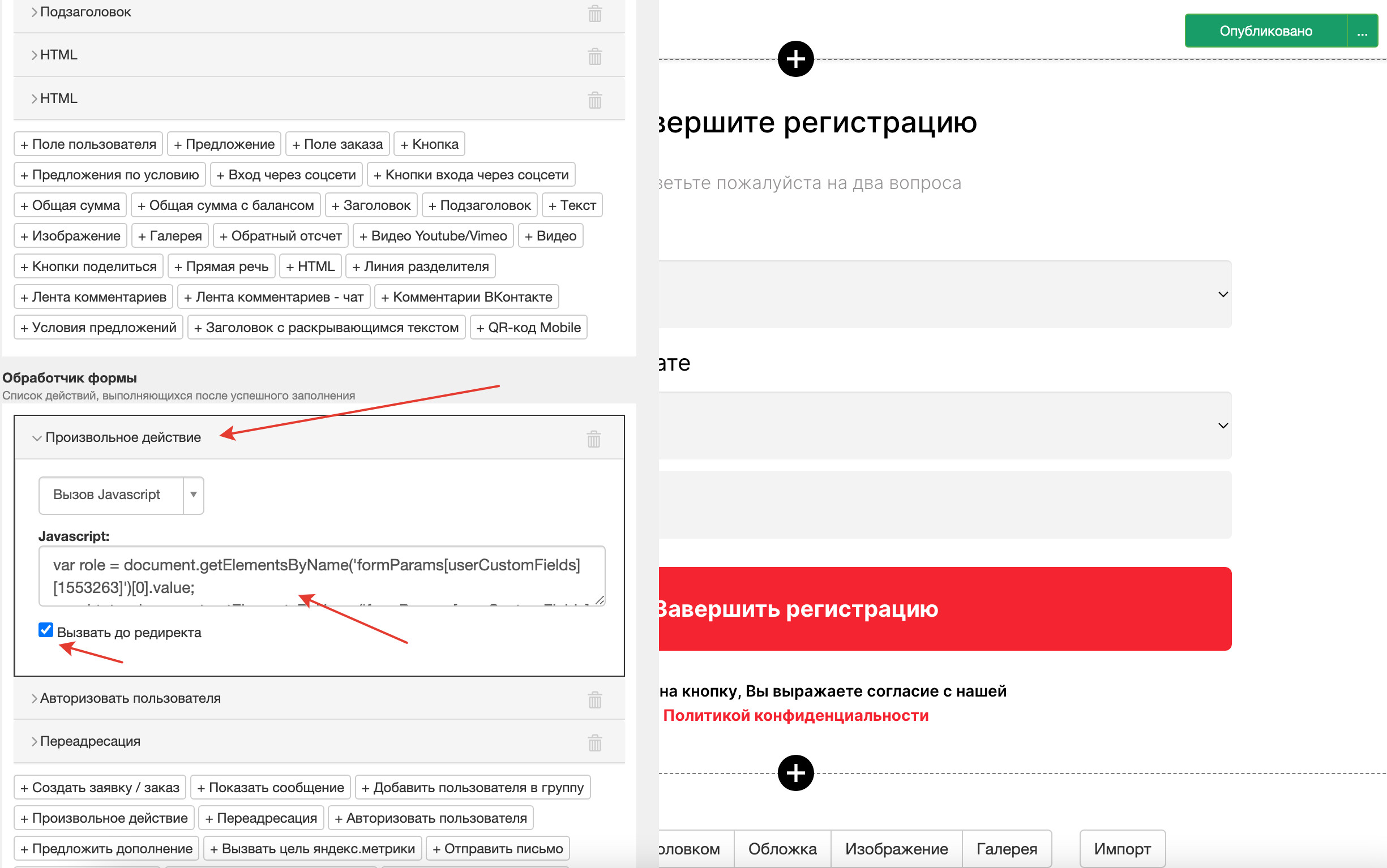
Step 4. Insert the code inside the GetCourse form.
To do that, open the GetCourse form settings, find “Form handler” (it performs actions after the form is submitted), find the “Custom action” field there → Call JavaScript, and paste the finished code. Do not forget to tick “Call before redirect”, and be sure to put the custom action first so the script fires before the other actions.
Working strategy
Now you can track 2 events in your Facebook account: leads and qualified leads.
Do not rush to optimize the ads for the new event right away — wait a bit for data to accumulate, and as soon as you understand you can get 50 events a week, launch optimization for it.